
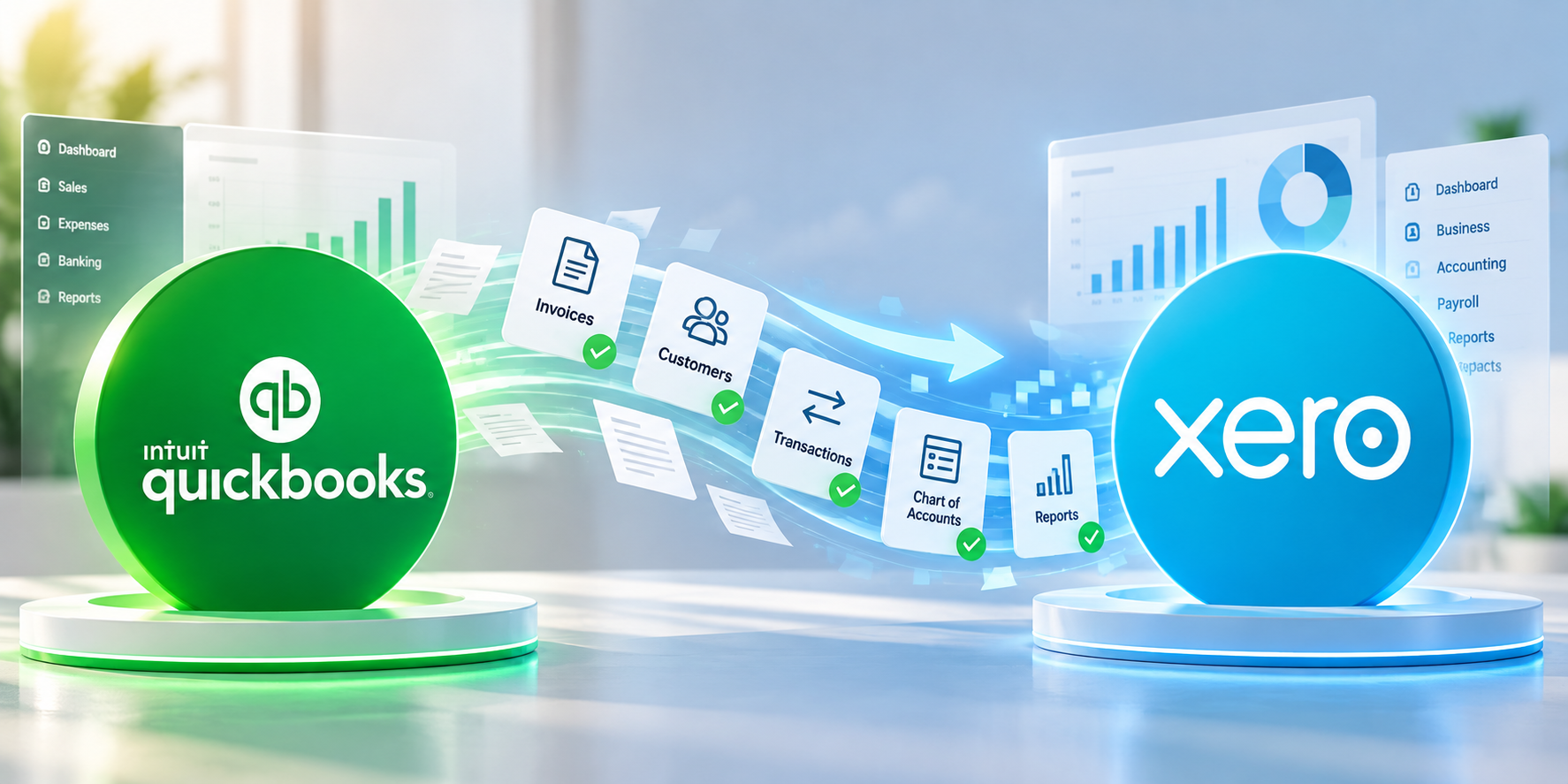
Many businesses eventually reach a point where they consider changing their accounting software.
For some, that means moving from QuickBooks to Xero.
Whether you're moving from QuickBooks Online or QuickBooks Desktop, a successful migration involves much more than simply transferring data from one accounting system to another.
If the migration isn't properly planned, businesses can carry incorrect opening balances, duplicate transactions, unreconciled accounts, outdated customer balances or incorrect tax settings into their new Xero file.
Before making the switch, here are 10 important things you should check before migrating from QuickBooks to Xero.
1. Don't Migrate Before Cleaning Up Your QuickBooks File
One of the biggest mistakes businesses make is migrating a messy QuickBooks file directly into Xero.
Before migration, review your QuickBooks accounts for:
Duplicate transactions
Old unreconciled transactions
Incorrect account classifications
Unpaid invoices that have already been settled
Old supplier bills
Suspense balances
Incorrect opening balances
Real-World Example
Imagine a company has been using QuickBooks for five years.
The bank accounts are reconciled, but there are still hundreds of old unreconciled transactions and several unexplained balances.
If the company migrates immediately, those accounting problems may simply move into Xero.
A migration is often an opportunity to clean up historical accounting issues before starting fresh in the new system.
2. Review Your Chart of Accounts
Your QuickBooks chart of accounts may not be structured in the same way you want your Xero accounts to be.
Before migration, review:
Income accounts
Cost of sales
Operating expenses
Current assets
Fixed assets
Current liabilities
Long-term liabilities
Equity accounts
You may find that some accounts are duplicated, outdated or no longer relevant.
A migration is therefore an opportunity to create a cleaner and more useful chart of accounts.
3. Check Your Bank and Credit Card Accounts
Before switching systems, make sure your bank and credit card accounts are properly reconciled.
Review:
Current balances
Bank feeds
Credit card balances
Outstanding transactions
Transfers between accounts
Unreconciled transactions
Your final QuickBooks balances should be supported by the relevant bank and credit card statements.
Why This Matters
If the closing bank balance in QuickBooks is incorrect, that incorrect balance could become the opening position in Xero.
4. Verify Your Opening Balances
Opening balances are one of the most important parts of an accounting migration.
Before starting Xero, verify balances for:
Bank accounts
Credit cards
Accounts receivable
Accounts payable
Loans
Fixed assets
Accumulated depreciation
Tax liabilities
Equity accounts
Real-World Example
Suppose QuickBooks shows:
Bank balance: $75,000
But the actual bank statement shows:
$72,500
If $75,000 becomes the opening balance in Xero, the new accounting system has already started with a $2,500 difference.
This is why opening balances should be independently checked before migration.
5. Review Accounts Receivable
Don't simply transfer your customer list and outstanding invoices.
Review your Accounts Receivable balance and ask:
Are these invoices genuinely unpaid?
Are any invoices duplicated?
Are there old invoices that should be written off?
Have customer payments been allocated correctly?
Are credit notes properly recorded?
Real-World Example
A company has $40,000 showing as Accounts Receivable.
After reviewing customer balances, $8,000 relates to invoices that customers had already paid but the payments were never correctly allocated.
Migrating that balance without reviewing it would make the new Xero file inaccurate from day one.
6. Review Accounts Payable
The same principle applies to supplier balances.
Before migrating, review:
Outstanding bills
Supplier credits
Duplicate bills
Old unpaid balances
Payments made but not allocated
Supplier statements
Your objective should be to establish:
What do we actually owe our suppliers on the migration date?
rather than simply transferring whatever balance appears in QuickBooks.
7. Decide How Much Historical Data You Need
You don't always need to transfer every transaction from the beginning of your business.
Depending on your requirements, you might migrate:
Opening balances only
Current-year transactions
Several years of historical transactions
Full transaction history
The right approach depends on:
Reporting requirements
Tax requirements
Audit requirements
Business size
Transaction volume
Future reporting needs
Historical data should be transferred based on business requirements, not simply because it is technically possible.
8. Review Tax Settings
Tax settings require particular attention during a migration.
Depending on your jurisdiction, review:
VAT
GST
Sales tax
Tax rates
Tax codes
Tax reporting periods
Tax liability balances
Don't assume that the tax settings in QuickBooks can simply be copied into Xero without review.
Incorrect tax codes can affect future transactions and potentially tax reporting.
9. Check Your Integrations
Many businesses don't use their accounting software in isolation.
They may connect:
Shopify
Amazon
PayPal
Stripe
A2X
Inventory systems
Payroll systems
Expense management systems
Payment platforms
Before switching to Xero, identify all integrations connected to QuickBooks.
Then determine:
Which integrations need to be disconnected?
Which need to be connected to Xero?
How should historical transactions be handled?
This is particularly important for e-commerce businesses.
10. Don't Forget Post-Migration Validation
This is one of the most important steps.
A migration isn't finished simply because the data appears in Xero.
After migration, compare the new Xero file against the final QuickBooks records.
Review:
Balance Sheet
Bank balances
Accounts receivable
Accounts payable
Loans
Fixed assets
Tax liabilities
Equity
Profit & Loss
Revenue
Cost of sales
Gross profit
Operating expenses
Net profit
Reconciliation
Bank accounts
Credit cards
Payment processors
Other relevant accounts
The goal is to ensure that:
QuickBooks closing balances = Xero opening balances
subject to the agreed migration approach and any documented adjustments.
A Real-World Migration Example
Consider an e-commerce business that has been using QuickBooks for several years.
The company sells through Shopify and receives payments through PayPal and Stripe.
The owner decides to move to Xero.
At first, the migration appears successful.
The customer list is there.
The suppliers are there.
The bank accounts are there.
The opening balances appear reasonable.
But a detailed review identifies several issues:
Some historical bank transactions were duplicated
PayPal transactions were not fully reconciled
Several Shopify fees were incorrectly classified
Some old customer invoices were already paid
The inventory balance wasn't properly supported
The opening bank balance required adjustment
The migration itself wasn't necessarily the problem.
The problem was moving the data without performing sufficient cleanup and validation.
This is why a successful accounting migration should include pre-migration cleanup, controlled migration and post-migration verification.
A Simple QuickBooks-to-Xero Migration Process
A structured migration can be approached in five stages:
Step 1 — Assess
Review the existing QuickBooks file and identify potential issues.
Step 2 — Clean
Resolve duplicates, unreconciled transactions, incorrect classifications and historical discrepancies.
Step 3 — Prepare
Review the chart of accounts, customers, suppliers, tax settings and opening balances.
Step 4 — Migrate
Transfer the agreed data into Xero using an appropriate migration method.
Step 5 — Validate
Reconcile and compare the Xero balances against the final QuickBooks records.
Assess → Clean → Prepare → Migrate → Validate
This approach reduces the risk of carrying historical accounting problems into the new system.
Common QuickBooks-to-Xero Migration Mistakes
Avoid these common mistakes:
❌ Migrating without cleaning the QuickBooks file
❌ Assuming bank feeds will fix historical errors
❌ Ignoring opening balances
❌ Transferring old unpaid invoices without reviewing them
❌ Forgetting payment processor accounts
❌ Ignoring inventory
❌ Using incorrect tax codes
❌ Connecting integrations without a migration plan
❌ Failing to reconcile after migration
❌ Closing the old accounting system before validating Xero
When Should You Consider a QuickBooks-to-Xero Migration?
Businesses may consider moving to Xero when:
Their current accounting system no longer fits their needs
They want improved collaboration with their accountant
They need different integrations
Their business is expanding internationally
They want a different workflow for bookkeeping
Their accounting firm recommends Xero
They want to simplify their accounting processes
However, the decision should be based on your business requirements, not simply on which software is more popular.
The Key Takeaway
Moving from QuickBooks to Xero is not just a data transfer project.
It is an opportunity to:
Clean → Organize → Reconcile → Migrate → Validate
A well-planned migration can give your business a cleaner accounting foundation and more reliable financial information going forward.
The most important question isn't:
"Did we move all the data?"
It is:
"Is the new accounting system accurate and ready to use?"
Need Help Moving from QuickBooks to Xero?
At ACCIT BPO, we support businesses with accounting system migrations, bookkeeping cleanup, reconciliation and post-migration validation.
Our team has experience working with QuickBooks, Xero and Zoho Books, helping businesses move their accounting data while paying close attention to historical balances, reconciliations and financial reporting.
Whether you're moving from QuickBooks Online or QuickBooks Desktop to Xero, we can help you plan the migration, clean up historical data and validate the new accounting system.
Planning a QuickBooks-to-Xero migration?
Contact ACCIT BPO to discuss your migration requirements.
Don't just move your data. Move to Xero with confidence.